


This website uses cookies so that we can provide you with the best user experience possible. Cookie information is stored in your browser and performs functions such as recognising you when you return to our website and helping our team to understand which sections of the website you find most interesting and useful.
Applying Tasks to Posts

Sandeep Kumar Mishra
January 13, 2026
5 minutes read
This guide explains how to apply an existing task to posts, review the AI-generated output, and decide whether to accept or reject the changes.
Accessing the Apply Tasks Screen
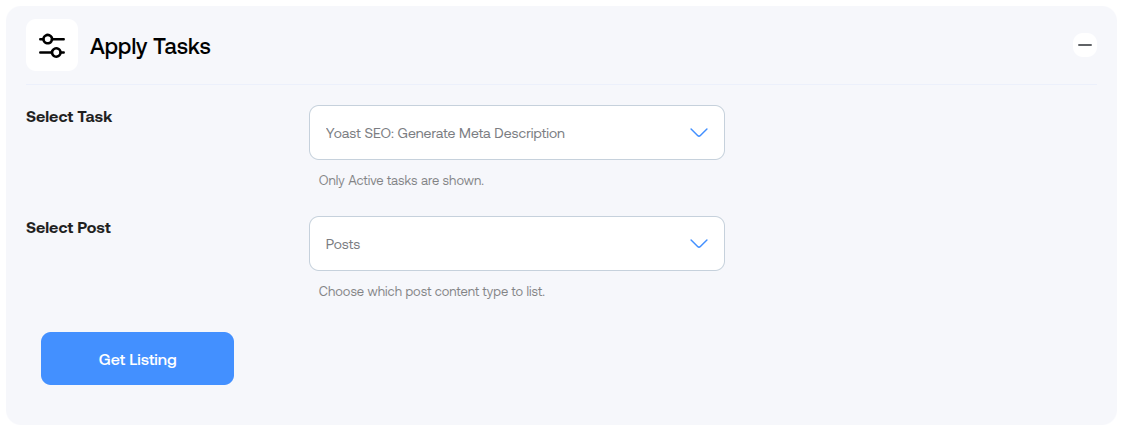
- Go to WP AI Content Pro → Apply Tasks.
- You will see options to select a task and a post type.
Step 1: Select a Task
From the Select Task dropdown, choose the task you want to apply.
- Only Active tasks appear in this list.
- If a task is missing, check its status in Manage Tasks.
Step 2: Select a Post Type
From the Select Post Type dropdown, choose the post type you want to work with.
- All registered post types are supported.
- This selection controls which posts are loaded in the list.
Step 3: Get Listing
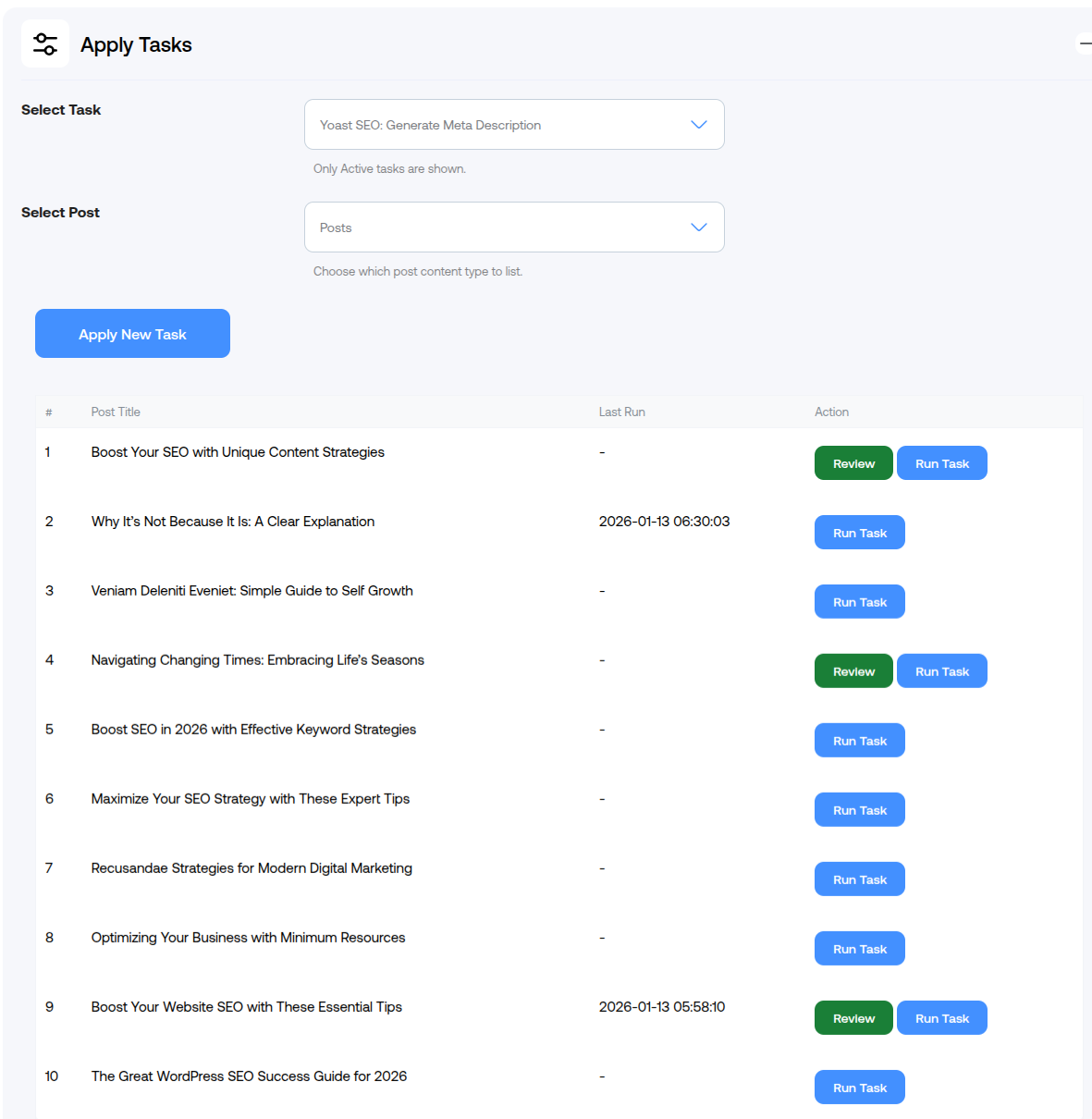
- Click the Get Listing button.
- The plugin loads posts for the selected post type and displays them in a table.
The table includes:
- Post Title
- Last Run – shows when a task was last accepted for the post
- Action
Step 4: Run Task
To generate AI content for a post:
- Locate the post in the list.
- Click Run Task in the Action column.
When you run a task:
- The task prompt is processed with dynamic placeholders.
- The OpenAI API is called.
- The AI-generated output is stored temporarily.
Once completed, a Review button becomes available.
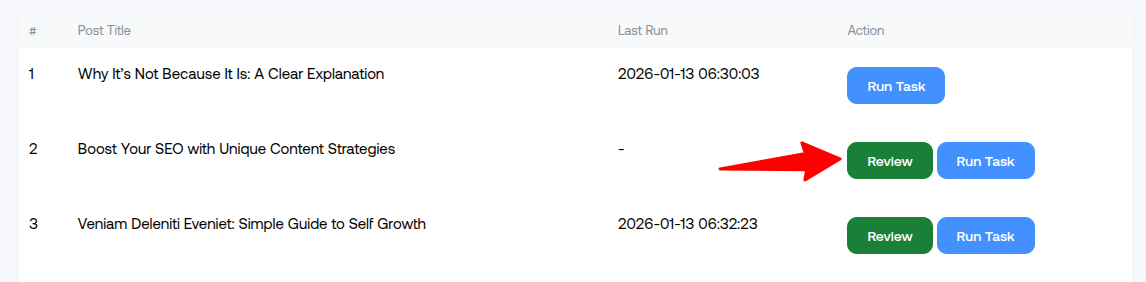
Step 5: Preview AI Changes
- Click the Preview button.
- A modal opens showing a side-by-side comparison.
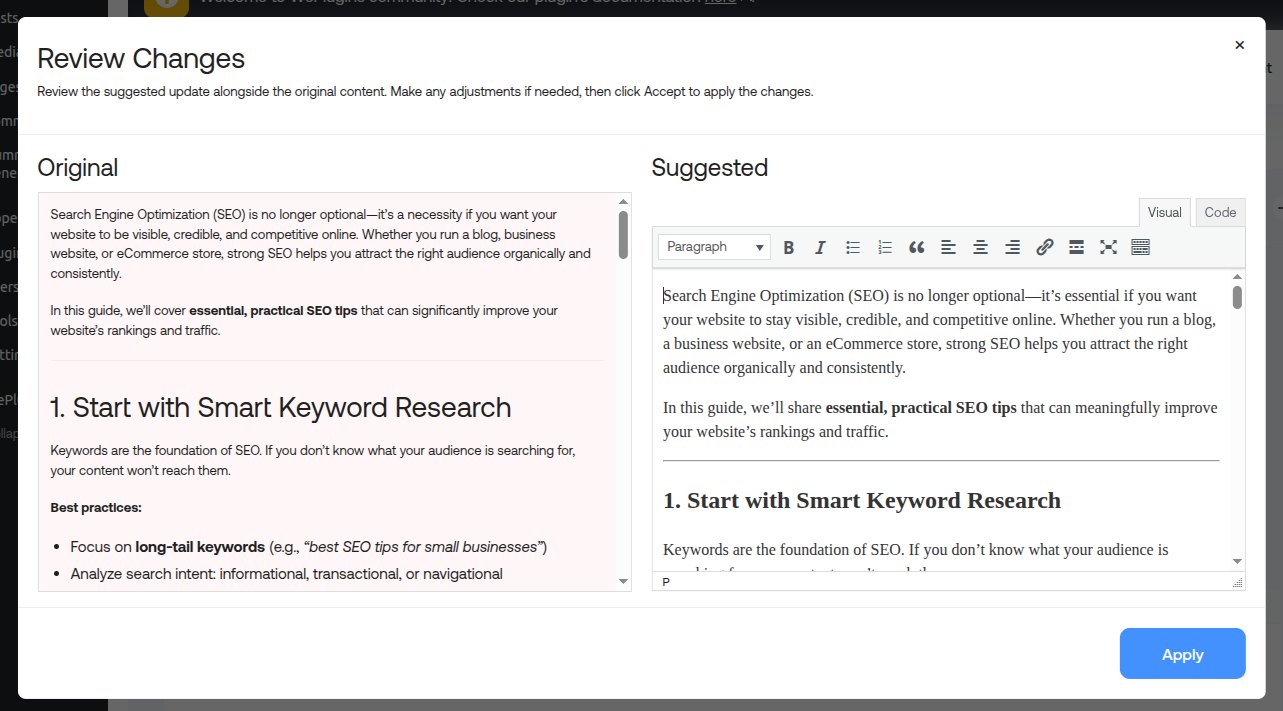
The preview includes:
- Original content on one side
- Suggested content on the other side
- Highlighted differences using insertions and deletions
This allows you to fully review what will change before anything is saved.
Accepting Changes
Accept
Click Accept if you are satisfied with the suggested content.
- The selected field (title, content, or custom field) is updated immediately.
- The change is recorded as the last update for the post.
- The preview data is removed.
Review Expiry
- Preview data is stored temporarily.
- If the preview expires, the Review button is removed.
- To regenerate the preview, click Run Task again.
Error Handling
If any issues occur while running a task:
- Errors are displayed at the top of the page.
- Common causes include missing API key or API request failures.
Review the error messages, fix the issue, and try again.
Important Notes
- Tasks are applied to one post at a time.
- No changes are saved until you click Accept.
- Once accepted, the old content cannot be restored.
Summary
The Apply Tasks screen gives you full control over AI-generated content. You decide when to generate, review and accept changes—ensuring your content is updated safely and intentionally.
Explore the latest in WordPress
Trying to stay on top of it all? Get the best tools, resources and inspiration sent to your inbox every Wednesday.