


This website uses cookies so that we can provide you with the best user experience possible. Cookie information is stored in your browser and performs functions such as recognising you when you return to our website and helping our team to understand which sections of the website you find most interesting and useful.
Creating & Managing AI Tasks

Sandeep Kumar Mishra
January 13, 2026
5 minutes read
This guide explains how to create, edit, and manage tasks in WP AI Content Pro. Tasks define what instructions are sent to OpenAI and where the generated output will be applied.
What Is a Task?
A task is a reusable AI instruction that can be applied to WordPress posts. Each task contains a prompt, optional dynamic placeholders, and a target output (post title, post content, or a custom field).
You can create multiple tasks and reuse them across different posts.
Creating a New Task
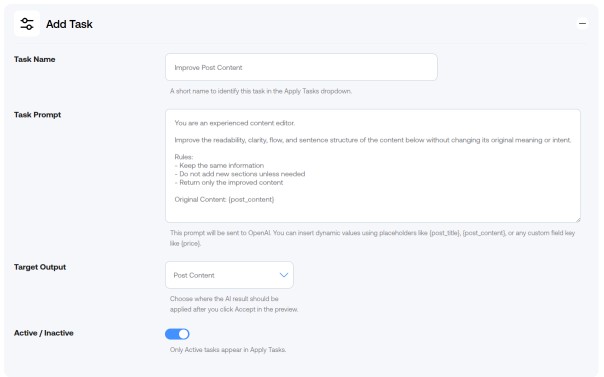
- Go to WP AI Content Pro → Add Task.
- Fill in the task details as explained below.
- Click Save Task.
Task Fields Explained
Task Name
- Purpose: Helps you identify the task in the Apply Tasks screen.
- Example: SEO Title Rewrite
Task Prompt
- Purpose: The instruction sent to OpenAI.
- You can include dynamic placeholders such as {post_title}, {post_content}, or custom fields like {price}.
Example:
Rewrite {post_title} to be SEO-friendly and under 60 characters.Prompts should clearly explain what you want the AI to do. A dedicated guide on writing effective prompts is covered separately.
Target Output
Select where the AI-generated result should be applied after you accept the preview.
- Post Title – Updates the post title
- Post Content – Updates the main post content
- Custom Field – Updates a single custom field or ACF field
Custom Field Key
This field appears only when Target Output is set to Custom Field.
- Enter the meta key or ACF field key (without braces).
- Example: price
If both a custom field and an ACF field exist with the same key, the ACF field value is updated.
Status (Active / Inactive)
- Active: The task is available in the Apply Tasks dropdown.
- Inactive: The task is hidden and cannot be applied.
This is useful for temporarily disabling tasks without deleting them.
Editing a Task
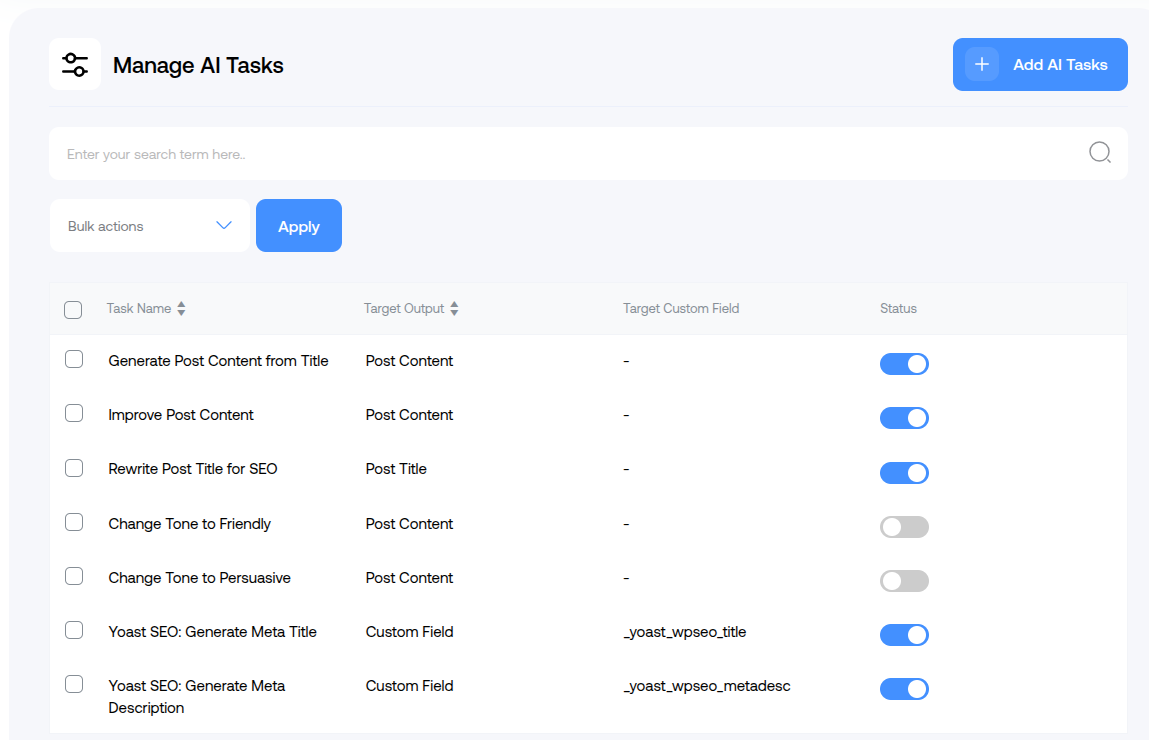
- Go to WP AI Content Pro → Manage Tasks.
- Locate the task you want to modify.
- Click Edit.
- Update the fields as needed.
- Click Save Task.
Changes apply immediately and will be used the next time the task is run.
Deleting a Task
- Go to WP AI Content Pro → Manage Tasks.
- Find the task you no longer need.
- Click Delete.
Important: Deleting a task is permanent and cannot be undone.
Best Practices for Managing Tasks
- Use clear and descriptive task names.
- Keep prompts reusable rather than post-specific.
- Disable tasks instead of deleting them if you may need them later.
- Create separate tasks for different outputs (title, content, custom field).
Next Step
Once your tasks are ready, the next step is learning how to write prompts that produce consistent and high-quality results.
Continue to: Writing Effective Task Prompts
Explore the latest in WordPress
Trying to stay on top of it all? Get the best tools, resources and inspiration sent to your inbox every Wednesday.