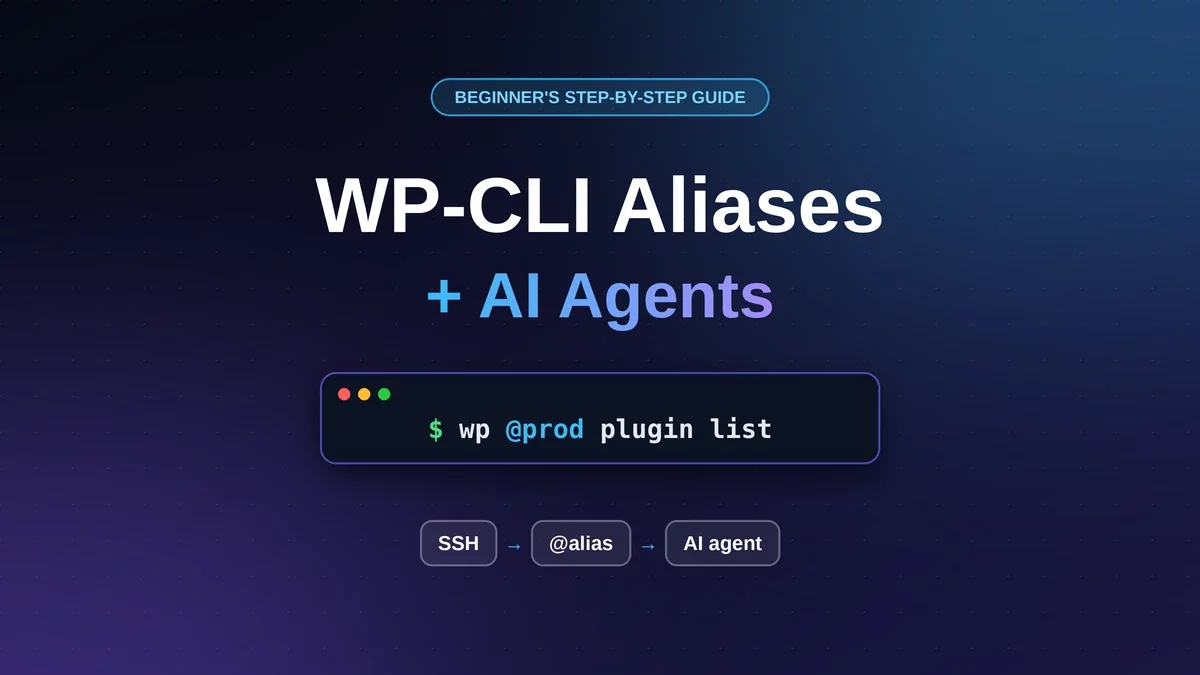
WP-CLI is the official command-line tool for WordPress. Instead of logging in to the dashboard and clicking through screens, you type short text commands in a terminal to do the same jobs, such as listing plugins, updating content, managing users or checking settings. It is faster for repetitive work, and because it runs on plain text commands, it is also easy to automate or hand to an AI agent.
WP-CLI works well on a single site, but it gets harder when your WordPress sites live on remote servers and you have to connect to each one first. That is the problem WP-CLI aliases solve.
WP-CLI aliases let you run WordPress commands on a live or staging site from your own computer, using a short nickname like @prod instead of logging into the server, opening the dashboard, or typing long connection details each time. They solve a common problem: checking plugins, users, settings and content across one or more WordPress sites is slow when it all happens through clicks and page loads. With an alias, one command such as wp @prod plugin list returns the answer in seconds.
This also makes aliases the safest and cleanest way to connect an AI agent to WordPress. An AI coding agent such as Claude Code or Codex can run terminal commands, so with an alias it can audit your SEO descriptions, compare staging with production, or check for plugin updates, without browser automation and without you pasting server details into a chat. You stay in control by deciding which alias it can use and what it is allowed to do.
In this beginner’s guide you will learn what each piece means, how to set it up step by step (SSH access, SSH config, WP-CLI, aliases and an AGENTS.md rules file), which commands are safe, ten practical use cases for AI with WP-CLI, and how to reduce the risks of giving an AI access to a live website.
What Problems Do WP-CLI Aliases Solve for WordPress Users?
If you manage WordPress sites, you have probably hit at least one of these frustrations. Aliases and the command line fix them directly.
The problem
Without a WP-CLI alias
With a WP-CLI alias
Checking a live site’s plugins or settings
Log in to the dashboard, click through several screens
Run wp @prod plugin list from your terminal
Remembering server details
Retype hostname, username, port and folder path every time
Type one nickname, @prod
Comparing staging and production
Open two dashboards and compare by eye
Run the same command against @staging and @prod
Repetitive audits (SEO, users, plugins)
Manual checking, page by page
One command returns a full list that you or an AI can review
Giving an AI access to your site
Browser automation, screenshots, or pasting server details into prompts
The AI runs plain commands through a named alias, with rules you define
Keeping secrets out of project files
Connection details end up in scripts or prompts
Credentials stay in your SSH config; only the nickname is shared
In short, aliases turn “log in, click, wait, repeat” into a single, repeatable line of text. That is useful for you, and it is exactly the kind of input an AI agent can work with reliably.
Key Terms Explained Simply: WP-CLI, SSH, Alias and AI Agent
If these words are new to you, this table is your cheat sheet. You can come back to it any time.
Term
Plain-English meaning
Real-life comparison
WP-CLI
The official command-line tool for WordPress. You type short commands instead of clicking in the dashboard.
A remote control for your site
Terminal
The text window where you type commands.
A chat window with your computer
SSH
A secure way to connect to another computer (your web server) and run commands on it.
A private, locked phone line to your server
SSH key
A pair of files that prove who you are, instead of typing a password.
A house key (private) and the lock (public)
WP-CLI alias
A nickname like @prod for a WordPress site on a server.
A contact saved as “Mom” instead of a full phone number
AI agent
An AI tool that can run commands and read files, not just chat. Examples: Claude Code, Codex.
A fast assistant sitting at your terminal
AGENTS.md
A text file in your project with instructions the AI reads at the start of each session.
A house-rules note on the fridge
Production / Staging
Production is your live site. Staging is a safe copy for testing.
The real stage vs the rehearsal room
Why Use WP-CLI with AI Agents Instead of Plugins or Browser Automation?
You could let an AI “use” WordPress by controlling a browser, or by installing an AI plugin. WP-CLI is often a better fit for technical tasks because:
It is direct. The agent runs a command and gets text back. No screenshots, no clicking, no waiting for pages to load.
It is predictable. The same command gives the same kind of output every time, which is easy for an AI to read and reason about.
It is powerful. WP-CLI can check settings, manage plugins and users, update content, run database searches, and even run test PHP code.
It is inspectable. Every command is visible text. You can read exactly what the AI wants to run before you approve it.
It needs no extra plugin on your site. WP-CLI talks to WordPress from the outside, so you are not adding more code to your live site.
The trade-off is that it is a power tool. A wrong command on a live site can change or delete real data. That is why this guide spends as much time on safety as on setup.
What You Need Before You Start Using WP-CLI Aliases
A WordPress site on a host that offers SSH access (many managed hosts do, some only on higher plans).
WP-CLI installed on that server. Most good WordPress hosts include it.
A computer with a terminal: macOS Terminal, Linux, or Windows with WSL (Windows Subsystem for Linux).
Optionally, an AI coding agent such as Claude Code or Codex. You can do steps 1 to 5 without one.
A recent backup of your site. Always.
Beginner tip: If you have a staging site, build and test everything there first. Treat production as the final step, not the starting point.
Step 1: Get SSH Access to Your WordPress Server for WP-CLI
A remote WP-CLI alias works by connecting to your server over SSH and asking the server’s own copy of WP-CLI to run the command. So SSH comes first.
From your hosting dashboard or support team, collect:
The hostname (for example, example.com or a server address)
Your SSH username
The port (usually 22, but some hosts use a different one)
How you log in (usually an SSH key)
Create an SSH key if you do not have one
Most hosts let you upload a public key in their dashboard. To create a modern key pair on your computer:
This creates two files: a private key (keep it secret, never share it) and a public key ending in .pub (this is the one you give to your host).
Test the connection
ssh username@example.com
If you land in a server command prompt, it works. Now find your WordPress folder and confirm WP-CLI exists on the server:
cd /path/to/wordpress
wp core version
If this prints a WordPress version number, you are ready. If you see “command not found”, WP-CLI is not available on the server. Ask your host to enable it, or consider a host that includes it.
Write these down before moving on: hostname, username, port, key file, and the full path to your WordPress folder.
Step 2: Add a Shortcut to Your SSH Config File
Typing the full connection details every time is annoying, and it is risky to paste them into AI prompts or project files. The fix is the SSH config file on your computer, located at ~/.ssh/config.
Add an entry like this:
Host example-prod
    HostName example.com
    User username
    Port 22
    IdentityFile ~/.ssh/id_ed25519_example
    IdentitiesOnly yes
The word after Host is just your own nickname. It does not have to match your domain. A good habit is to include the environment in the name, like example-prod or example-staging, so you never confuse them.
Test it:
ssh example-prod
If that logs you in, SSH now knows the details, and everything else can use the short name instead.
Important: never put passwords, private keys or key contents into AGENTS.md, wp-cli.yml, or any file or message your AI agent can see. Only the short nickname should appear there.
Step 3: Install WP-CLI on Your Local Computer
WP-CLI must exist in two places for a remote alias to work:
On the server, where the command finally runs (you checked this in Step 1).
On your computer, where you and your AI agent type wp.
You should see your WP-CLI version and the PHP version it uses. On Windows, the simplest path is to install WSL and follow the Linux instructions inside it.
Step 4: Create WP-CLI Aliases for Production and Staging
Now the key step. WP-CLI reads aliases from a configuration file. You have two places to put them:
File
Location
Best for
Global config
~/.wp-cli/config.yml
Aliases that depend on your SSH setup (recommended for remote sites)
Project config
wp-cli.yml in the project folder
Settings that are safe to share with a team
Because remote aliases rely on your personal SSH config, the global file is usually the better home. Create or edit ~/.wp-cli/config.yml:
@prod is the alias name. You choose it. It must start with @.
ssh: example-prod points to the Host entry you made in Step 2.
path: is the folder on the server that contains WordPress.
Do you need an alias for your local site?
Usually no. If you run wp from inside your local WordPress folder, it just works. If you must run a command from elsewhere, pass the path directly:
wp --path=/path/to/local/wordpress plugin list
Group aliases to run one command on several sites
You can bundle aliases into a group:
@both:
  - @prod
  - @staging
Now wp @both core version runs on both environments. Groups are great for comparing, but be careful: a command with side effects would run on both. Keep groups for read-only checks.
Step 5: Test Your WP-CLI Aliases with Read-Only Commands
Before involving AI, prove the alias works by running harmless “read” commands. Compare local and remote:
wp core version
wp @prod core version

wp option get home
wp @prod option get home
The pattern is always the same:
wp <command>           # runs on your local site
wp @prod <command>     # runs on the live site over SSH
If both return what you expect, your setup is complete. Browse the WP-CLI command reference to see what else is possible.
Step 6: Tell Your AI Agent How to Use WP-CLI Aliases with AGENTS.md
The last step is giving your AI agent clear instructions. Most coding agents read an instruction file at the start of every session. AGENTS.md is a common name for it (some tools use their own, such as CLAUDE.md). Put it in the root of your project.
Why this matters: without it, a fresh AI session has to guess how your environment is set up, and guessing near a live site is how mistakes happen. Write the rules once, and every session follows them.
Here is a beginner-friendly starting template:
## WordPress environments

- Run local WP-CLI commands with `wp` from the root of the local site.
- Use `wp @staging` for staging and `wp @prod` for production.
- Run commands locally by default.
- Production access is READ-ONLY unless I explicitly approve a write.
- Before any production write, show me the exact command and explain
  what it will change. Wait for my approval.
- Use `--dry-run` first whenever the command supports it.
- Never run destructive database or content commands on production
  (for example: db reset, db drop, post delete, site empty).
- Never read, print, or copy SSH keys or credentials.
- Do not connect to servers with raw ssh/rsync. Use the aliases only.
- Prefer `--format=json` when listing data that needs further processing.
Notice the rule about --dry-run. Some commands, such as wp search-replace, can preview what they would change without changing anything. That preview is one of the best safety habits you can teach an agent.
How the three pieces fit together
File
Job
~/.ssh/config
Handles the server connection
~/.wp-cli/config.yml
Names your WordPress environments (@prod, @staging)
AGENTS.md
Tells the AI which commands to use and where the limits are
Safe vs Risky WP-CLI Commands: What an AI Agent Should and Should Not Run
Not all WP-CLI commands carry the same risk. Use this as a guide when deciding what to approve.
Risk level
Example commands
What they do
Read-only (safe to start with)
wp @prod core version wp @prod plugin list --status=active wp @prod option get home wp @prod user list --role=administrator wp @prod core verify-checksums
Look at information. Change nothing.
Low-risk writes (ask first)
wp @prod cache flush wp @prod transient delete --expired wp @prod post meta update <id> <key> "<value>"
Small, usually reversible changes.
High-risk (preview, backup, approve)
wp @prod search-replace old new --dry-run (preview) wp @prod plugin update --all wp @prod plugin deactivate <plugin>
Can change many records or break features.
Destructive (never on production without a human)
wp db reset, wp db drop, wp post delete, wp site empty
Can permanently delete data.
Before any write to a live site, take a backup. You can export the database to a folder outside your public web directory, for example:
wp @prod db export ~/backups/before-change.sql
Remember that this file is created on the server. Your host’s own snapshot or backup tool is often the better first choice.
When to Use AI with WP-CLI: 10 Practical Use Cases for Beginners
AI plus WP-CLI shines when a task needs looking at lots of data, spotting patterns, or repeating a routine. Here are the best use cases, with example prompts you can copy.
1. Run a WordPress health check
Prompt: “Using the @prod alias in read-only mode, tell me the WordPress version, PHP-related info if available, active plugins, and any plugins with updates available.”
Why it helps: a 10-minute dashboard hunt becomes one summary.
2. Do a technical SEO audit
Prompt: “List published posts and pages, then check which ones are missing an SEO meta description. Show me a table. Do not change anything yet.”
Your SEO plugin stores meta descriptions as post meta, so the agent can read them with WP-CLI, then propose new descriptions for you to approve. This is a very safe, high-value starting task.
3. Audit users and permissions
Prompt: “List every administrator account on @prod and flag any that look unfamiliar or unused.”
4. Compare staging and production
Prompt: “Compare active plugins and their versions on @staging and @prod. Tell me what differs.”
This catches the classic “it works on staging but not live” problem fast.
5. Plan a safe plugin or theme update
Prompt: “Show which plugins have updates on @staging. Update them on staging only, then summarize what changed.”
6. Prepare a domain or URL change
Prompt: “Run a search-replace dry run from the old URL to the new one on @staging and report how many replacements it would make per table.”
Dry runs are perfect for AI: it can explain the results, and nothing is touched.
7. Pull production data to local for debugging
An agent can run a script that exports the live database and imports it into your local site, so you can reproduce a bug safely. A reusable bash script makes this repeatable.
8. Clean up routine clutter
Prompt: “Show me how many expired transients and spam comments exist on @staging. Propose the cleanup commands, but wait for approval.”
9. Bulk content fixes with your approval
Prompt: “Find posts with empty excerpts, draft new excerpts, and show them to me in a table. I will tell you which to apply.”
The best pattern here is “fetch, review together, then update”. The AI does the heavy lifting, you stay in control.
10. Explore and work with blocks, patterns and templates
Newer WP-CLI versions include a wp block command family, which lets an agent inspect blocks, patterns, styles and templates. Check the official block command docs for what your version supports.
Quick summary: good vs poor fits for AI with WP-CLI
Great fit
Needs extra care
Audits and reports (SEO, plugins, users)
Bulk updates on live data
Comparing environments
Database search-and-replace on production
Dry-run previews
Anything involving deletion
Repetitive, well-defined tasks
Vague goals like “make the site faster”
When Not to Use AI with WP-CLI
Being honest about the limits will save you trouble:
On a business-critical site with no backups. Fix the backup situation first.
When you do not understand the command. If the AI proposes something you cannot explain, ask it to explain, or skip it.
For anything destructive on production. Do those by hand, deliberately.
For vague, open-ended requests. “Fix my site” is a recipe for surprises. Ask for specific, checkable tasks.
When a one-line command is faster. You do not need an AI to run wp plugin list.
WP-CLI Aliases and AI Security: What Can Go Wrong and How to Reduce Risk
This is the part many tutorials skip. Please read it before connecting an agent to a live site.
The honest truth: rules in AGENTS.md are instructions, not locks. An AI agent that can run terminal commands on your computer can, in principle, find your SSH keys or call ssh directly, even if you told it to use only the alias. Real users have reported agents reaching for SSH credentials to complete a task by another route. Treat written rules as a guide, not a guarantee.
Ways to reduce the risk:
Start with staging. Give the agent production access only when you truly need it.
Use a limited SSH user or a dedicated key for agent work, if your host allows it, so access can be revoked without affecting your own.
Use your agent tool’s permission settings. Many agents can require approval for each command or block certain commands or paths with hooks or allow/deny lists.
Keep backups and know how to restore them before any write.
Keep secrets out of the project. No keys, passwords or tokens in AGENTS.md, wp-cli.yml or prompts.
Review every write command before approving it, and prefer --dry-run first.
Use it for low-stakes tasks first, such as audits and reports, while you build trust.
Be precise in your wording. A casual word like “deploy” can push an agent toward a different method than you intended. Say exactly which tool or alias to use.
Troubleshooting WP-CLI Aliases: Common Errors and Fixes
Problem
Likely cause
What to try
Permission denied (publickey)
Wrong key, or the public key is not added on the server
Check IdentityFile in your SSH config and your host’s SSH key settings.
wp: command not found on the server
WP-CLI is not installed there, or not on the server’s PATH for remote commands
Ask your host. Confirm with ssh example-prod "wp --info".
This does not seem to be a WordPress installation
Wrong path: in the alias
SSH in and use pwd inside the folder containing wp-config.php.
Unrecognized alias @prod (or similar)
Config file in the wrong place or a YAML formatting mistake
Run wp cli alias list. Check indentation uses spaces, not tabs.
Connection hangs or times out
Wrong port or a firewall
Verify the port with your host and test with plain ssh example-prod.
Bonus tip: once you have many aliases, you can set up shell tab completion so typing wp @pr then pressing Tab fills in the rest. WP-CLI documents how to enable completion for bash and zsh.
Conclusion: Start Small with WP-CLI Aliases and AI
The setup is only five pieces: SSH access, an SSH config shortcut, WP-CLI on your computer, a WP-CLI alias, and clear rules in AGENTS.md. Once they are in place, an AI agent can audit, compare and maintain your WordPress site from the command line in a fraction of the usual time.
Your next steps:
Set up an alias for a staging site first.
Ask the AI for a read-only audit, such as missing SEO descriptions.
Review its findings, then approve small updates yourself.
Only when you trust the workflow, consider a limited, approved production alias.
A WP-CLI alias is a short nickname, such as @prod, that points to a specific WordPress site. It stores the SSH connection and the site’s folder path, so you can run a command like “wp @prod plugin list” without typing server details every time.
Yes. Any AI coding agent that can run terminal commands, such as Claude Code or Codex, can run WP-CLI. With an alias, it can also run commands on a remote WordPress site over SSH, as long as you allow it.
It is safe only with precautions. Start with read-only commands, test on a staging site first, keep backups, require approval before any change, and use your agent’s permission settings. Rules written in AGENTS.md guide the agent but do not technically block it from acting.
For remote sites, yes. An alias for production or staging connects over SSH, and WP-CLI must also be installed on the server. For a local WordPress site, you do not need SSH or an alias.
Store them in the global file ~/.wp-cli/config.yml if they depend on your personal SSH setup. Use a project-level wp-cli.yml only for settings that are safe to share with your team.
AGENTS.md is a plain text instruction file that many AI coding agents read at the start of a session. For WP-CLI, it tells the agent which commands to use, which aliases exist, and what it must never do on production.
Sandeep Kumar Mishra
Sandeep Kumar Mishra writes about WordPress and Artificial Intelligence, offering tips and guides to help you master your website and stay updated with the latest tech trends.
Related Posts
Explore related articles covering connected topics, practical insights, and useful guides.
This website uses cookies so that we can provide you with the best user experience possible. Cookie information is stored in your browser and performs functions such as recognising you when you return to our website and helping our team to understand which sections of the website you find most interesting and useful.
Strictly Necessary Cookies
Strictly Necessary Cookie should be enabled at all times so that we can save your preferences for cookie settings.
If you disable this cookie, we will not be able to save your preferences. This means that every time you visit this website you will need to enable or disable cookies again.
3rd Party Cookies
This website uses Google Analytics to collect anonymous information such as the number of visitors to the site, and the most popular pages.
Keeping this cookie enabled helps us to improve our website.
Please enable Strictly Necessary Cookies first so that we can save your preferences!